
Firing Bullets
Effect bullets have several firing options: directly on the clip, on an adjustment layer over the whole length of the clip, and on an adjustment layer from the playhead to the end of the clip. Content bullets and SFX bullets are inserted on the timeline from the playhead.
Firing is always one click on the Bullet in the library. What changes is what you need to prepare before:
- For an effect bullet, select on the timeline the clip (or the clips) that will receive it, then click the Bullet.
- For a content bullet or an SFX, put the playhead where you want it to start, then click the Bullet.
Firing an effect bullet
You choose how you want this preset to be fired:
- Clip Directly on the clip.
- AL Inside an adjustment layer inserted automatically above your clip, from its start to its end, with the color and the name of your Bullet, which is very useful to keep your project organized.
- AL Playhead Inside an adjustment layer inserted above the clip, from the point where the playhead is to the end of the clip, also with the color and the name of your Bullet.
- As a transition, where Sniper reads the keyframes of the preset and inserts the transition by itself on the intersection of the selected clips.
On the Save screen these are the switches under Firing:
- With every switch off, the Bullet fires directly on the clip.
- Adjustment layer on, with Whole clip on: the layer covers the clip from its start to its end.
- Adjustment layer on, with Whole clip off: the layer goes from the playhead to the end of the clip.
- Fire as transition: the Bullet fires across the nearest cut.
Remember that the adjustment layer has to exist in your project, with the name you chose in the setup.
You can select the option that you will use the most. But each time you fire, you can use modifier keys, which let you customize the fire according to what you need at that moment.
Modifier keys
At the moment of the fire, you can use modifier keys to easily change how your Bullet will be fired:
Holding Alt (Windows) or Option (Mac) + click: Switches the target. A Bullet saved on the clip fires on an adjustment layer over the whole clip. A Bullet saved on an adjustment layer fires on the clip.
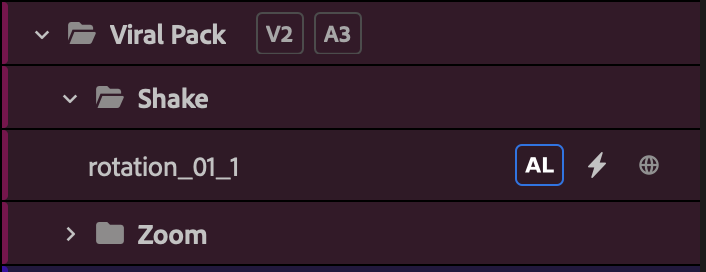
A Bullet saved on the clip, with Alt or Option held: it will fire on an adjustment layer Holding Shift + click: makes your Bullet fire from the playhead, on an adjustment layer or on the clip, depending on the option configured in the Bullet.
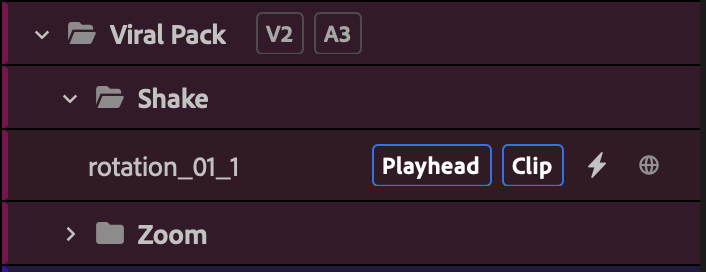
The same Bullet with Shift held: it will fire on the clip, from the playhead Holding Shift + Alt or Option + click: your Bullet switches its target and is fired from the playhead to the end of the clip.
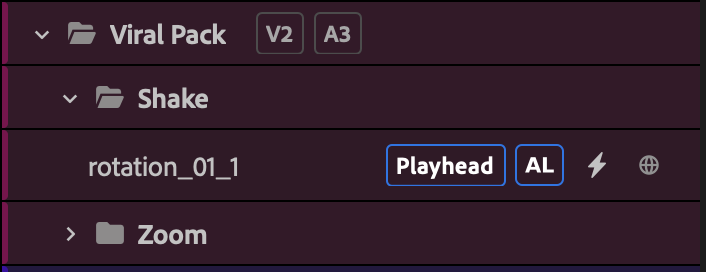
The same Bullet with Shift and Alt or Option held: it will fire on an adjustment layer, from the playhead
These shortcuts let you configure the most convenient ways of firing your Bullets and still open momentary exceptions for specific cases. It is worth mentioning that effect bullets of the transition type, or audio effect bullets, do not accept the modifiers. In that case the Bullet shows Modifier not allowed.
You do not need to memorize what each key will do with each Bullet. While you hold the key with the mouse over a Bullet, Sniper puts tags on it showing exactly how the Bullet will be fired: Clip, AL or Playhead.
Firing a content bullet
To fire a content bullet or an SFX, put the playhead where you want it to start and click the Bullet. Sniper first looks at the tracks you chose in the offset and, if they are busy at that point, goes up to the next free ones, so nothing on your timeline is overwritten.
Whenever it is necessary, Sniper fires the items nested. It detects by itself whether the Bullet has transitions or effects that would be lost if the items were separated, and only then inserts them nested, preserving your edit. You never need to nest anything when you save.
Firing on several clips
Sniper lets you fire your effect bullets on several clips at once, directly on the clip, on adjustment layers or as transitions. A transition Bullet goes on every cut between the clips you selected. In the multi-clip fire, the option of firing from the playhead is disabled.
Random fire from a folder
A folder can also fire its Bullets at random. When a folder has no sublevels, a "random" button appears when you move the mouse over it. When pressed, Sniper inserts a Bullet of the folder on the timeline at random, and each time you press it again, without losing the focus on the selected clip, it removes the one added before and inserts another one at random.
This is very useful when you have, for example, a folder of Whoosh SFX and you do not know which one will fit best at the moment of the edit: you can fire a random one. Or, for example, a text entrance animation. This feature lets you play with your library and use it in a much more productive and functional way.
Folders also accept modifiers.
Holding Alt (Windows) or Option (Mac) + click: the effect presets will be inserted directly on the clip.
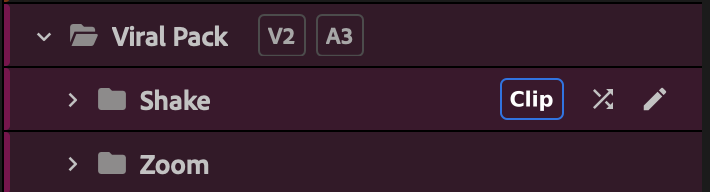
With Alt or Option held, the folder shows the Clip tag Holding Shift + click: the presets will be inserted on an adjustment layer with the full length of the clip.
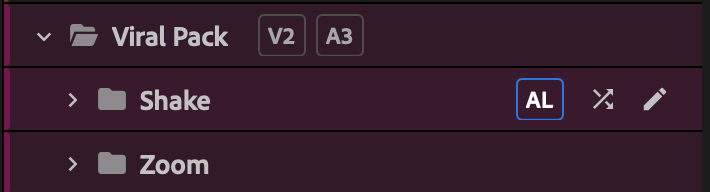
With Shift held, the folder shows the AL tag
Track offset
Each Bullet can have a Video offset and an Audio offset: the track of the sequence it is fired from. The Bullet shows it as a tag, for example V3 or A2. A Bullet inside a folder inherits the offsets of the folder.
The options are the numbers of the tracks of your sequence. With no number selected, the choice is automatic and Sniper uses the nearest free track. To go back to automatic, click the selected number again. When you choose a track, the Bullet starts from it and goes up if that track is busy at that point. It never goes below the track you chose and it never overwrites a clip.
If the active sequence does not have the track anymore (for example a Bullet set to V7 in a sequence with 3 video tracks), the tag appears faded and the Bullet fires as automatic.
So you can select the ideal track for each type of Bullet or SFX, optimizing your workflow.
Undo the last fire
After a fire, appears on the fixed bar. It removes what that fire inserted, and it stays available while the same clip is still selected.